Lesson 2 · about 20 minutes
Get your first app online
By the end of this lesson you'll have a real app at a real web address, open on your phone and sitting on your home screen. It's a tiny app on purpose, so the only new thing to learn is getting it online.
A tiny app, live on Cloudflare at its own address and on your home screen. You'll sign Wrangler in once, try it locally, then deploy.
A Worker serving static files: you sign in once with wrangler login, try it with wrangler dev, and put it live with wrangler deploy, plus a manifest and an icon. Skim the steps; the problems people hit are the useful bit.
What you'll make
- A one-page app with a button that counts your taps
- Live at its own address that anyone can open
- Added to your phone's home screen, with its own icon
You'll need: a Mac or Windows computer with Claude Code installed (see "Before you start" in lesson 1), and your phone.
Make a free Cloudflare account
Cloudflare is where your app will live. It runs a huge share of the web, and its free plan is plenty for a personal app, a family log or a small club.
Go to dash.cloudflare.com/sign-up and sign up with Google, Apple, GitHub or your email.
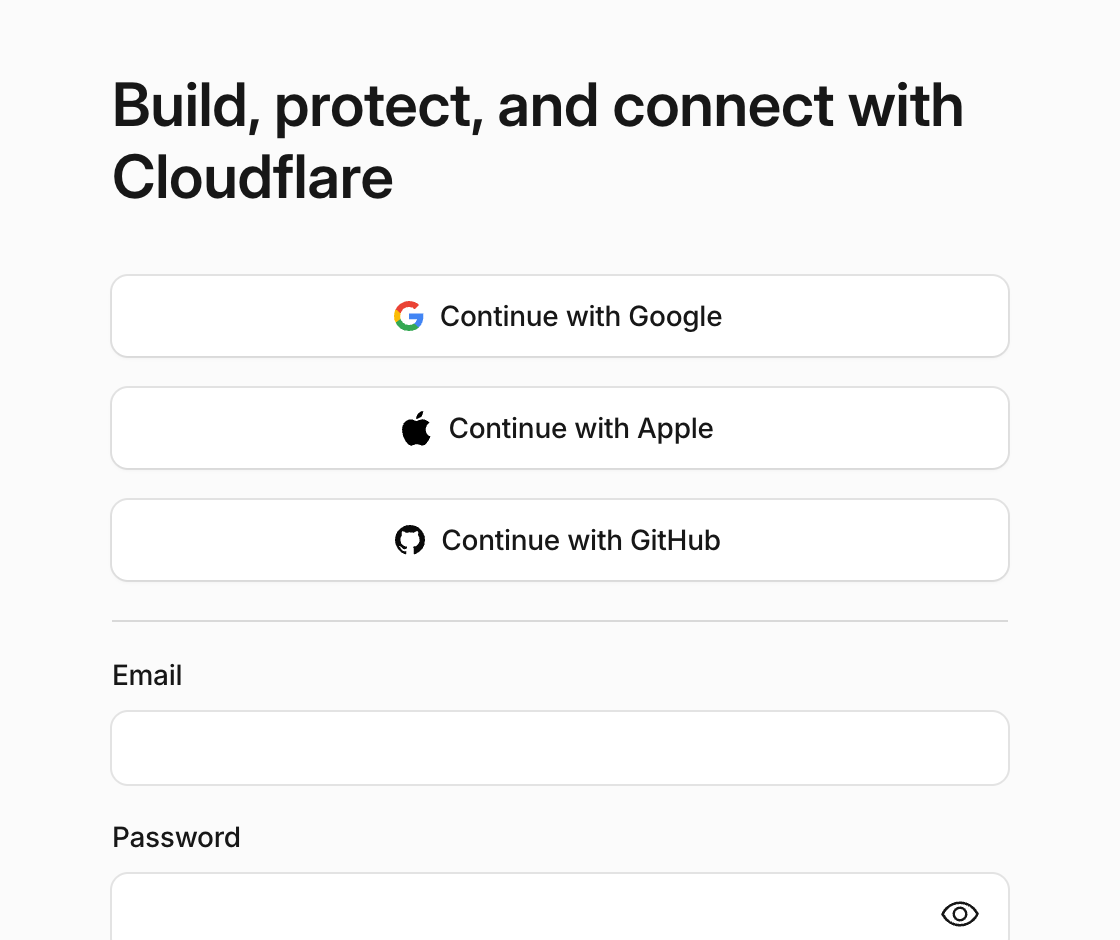
"Build, protect, and connect with Cloudflare", with sign-up buttons. Pick whichever is easiest.
If Cloudflare asks what you want to do first, you can skip it. Your agent will do the setting up.
Open your agent in a new folder
Each app gets its own folder. Open the Terminal app (on Windows, Terminal or PowerShell) and type these two lines, pressing Enter after each:
The first line makes a folder called my-first-app and goes into it. The second starts Claude Code there, so everything it makes stays in that folder.
Sign in to Cloudflare, once
Your agent puts apps online with a tool called Wrangler. It needs to sign in to your Cloudflare account one time. Ask your agent:
It runs npx wrangler login. A browser window opens asking you to allow Wrangler into your account. Click Allow.
A drawing of the page you'll see. Click Allow.
You only do this once per computer. From now on, "put it live" just works.
It says "npx: command not found"
The browser didn't open
https://dash.cloudflare.com/oauth2/. Copy it into your browser, click Allow, then come back.Ask for your first app
Now the fun part. Copy this, or say it in your own words:
The settings file is short. Yours will look much like this:
"name" becomes part of your web address. "assets" tells Cloudflare which folder holds the pages.
Try it on your computer
Before anything goes online, look at it. Say:
It runs npx wrangler dev, which starts your app on your own computer only. When it's ready, you'll see a line like this:
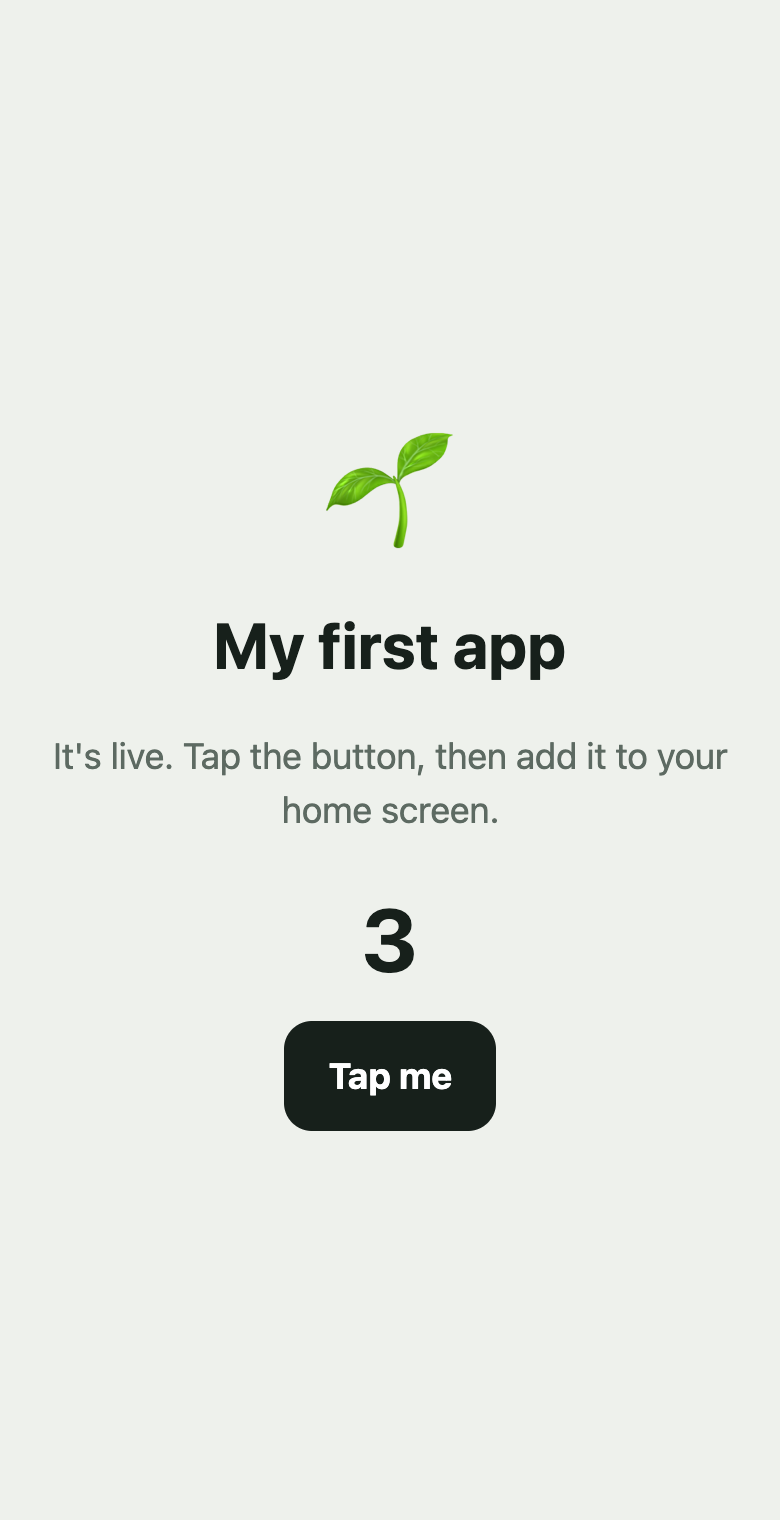
it's the real app: go on, tap it ↙
Your app, at http://localhost:8787. This is the real one: tap the button a few times, then refresh this page. The count stays.
"localhost" means "this computer". Nobody else can see it yet.
"Address already in use"
localhost:8788.Want changes? Say them now: "make the button green", "bigger text". It updates while you watch. This is the cheapest moment to change your mind.
Put it live
Happy with it? Say:
It runs npx wrangler deploy. In a few seconds your files are uploaded and you get your address:
Shortened. Your address has your own name in place of "you".
It asks me to choose a "workers.dev subdomain"
appname.yourname.workers.dev.The address says "not found" for a minute
Open it on your phone
Send yourself the address (a message to yourself is fine), open it on your phone, then add it to your home screen:
- Tap the Share button
- Scroll and tap Add to Home Screen
- Tap Add
- Tap the ⋮ menu
- Tap Add to Home screen or Install app
- Tap Install
A sprout icon on your home screen. Open it: it fills the screen with no browser bar, like any other app.
Your taps are counted separately on each phone for now. Sharing between phones comes in lesson 4.
Change something
This is the loop you'll use for everything from now on: say it, look at it, put it live.
Then refresh the app on your phone. If you don't see the change straight away, close the app fully and open it again.
Coming up in lesson 6: making sure phones always pick up new versions on their own, with a "new version ready" message.
Did it work?
Tick these off. They're saved in this browser, so you can come back later.
- My app has its own web address
- It opens on my phone
- It's on my home screen with its own icon
- I changed something and put it live again